
Guide
ColDonAgro Instructions
A quick walkthrough of the main ColDonAgro application screens: home, fields, tasks, and work mode.
Main screen
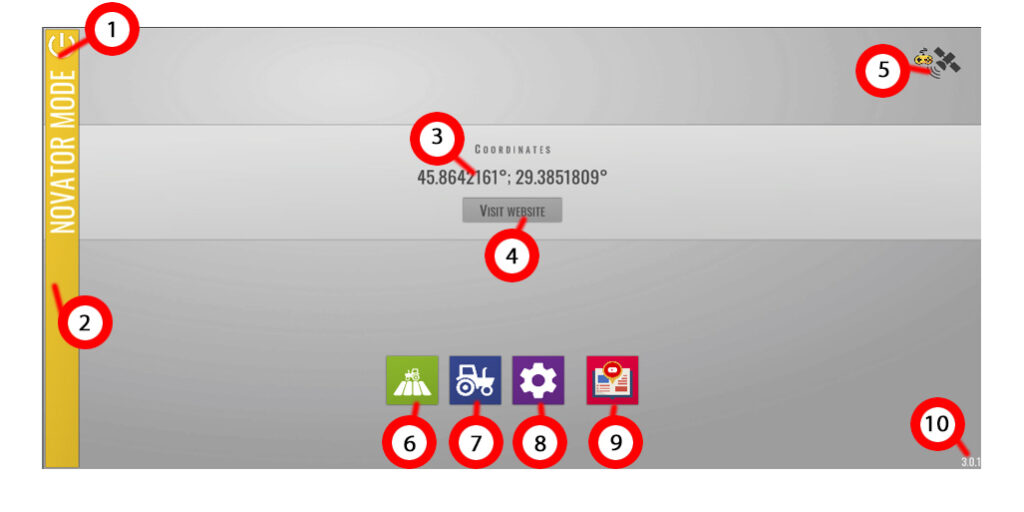
- Exit
- Novator mode indicator
- Your coordinates
- Go to www.coldonagro.com
- Satellite status and connection mode
- Fields and Tasks
- Setup Vehicles and Tools
- App and equipment settings
- Youtube video instruction
- App version
Fields screen
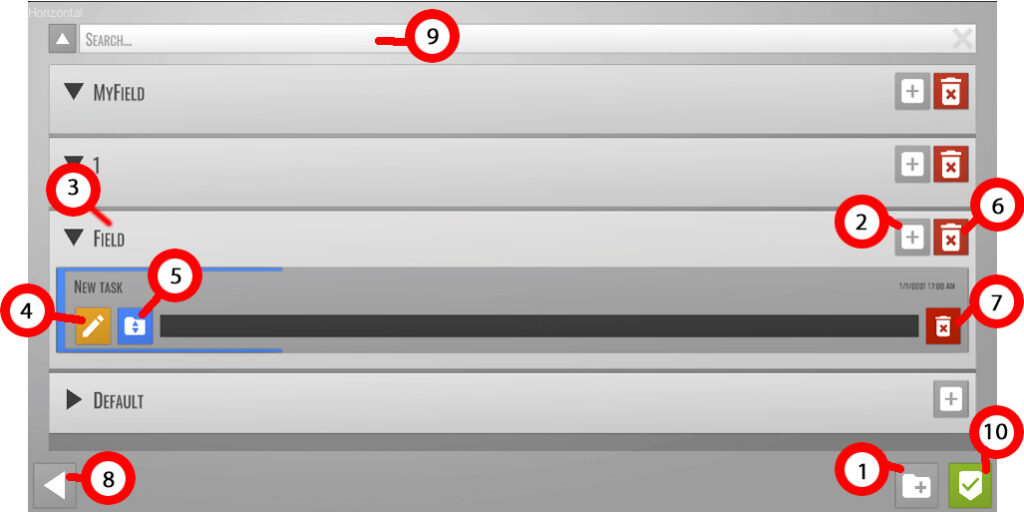
- Create new field
- Create new task
- Change field name
- Go to Task screen
- Move task to other field
- Delete field and all tasks in the field
- Delete task
- Back to Main screen
- Search task
- Reopen last task
Task screen
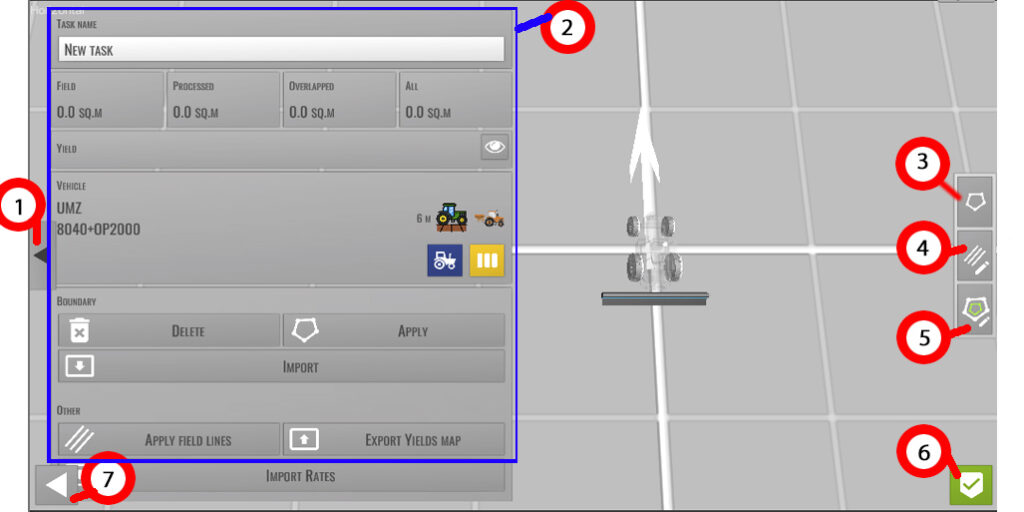
- Hide - show full screen
- Statistics panel
- Create your own field boundaries
- Create your own AB line
- Create hitch control zone
- Go to Work screen
- Go back
Work Screen
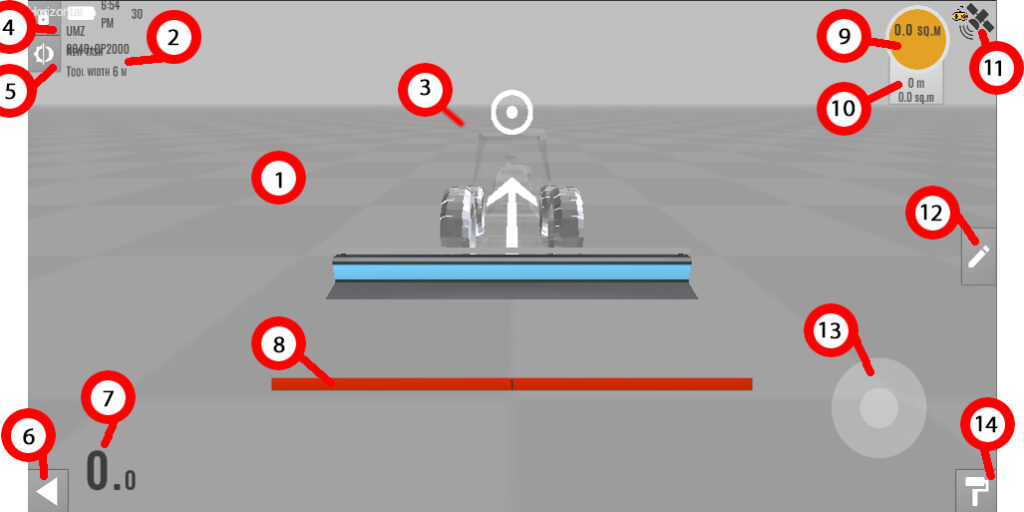
- Set camera zoom and view
- Field, time and battery info
- Press on the tractor if wrong direction
- Lock Camera view
- Light or dark mode
- Go back
- GPS speed
- Manual sections control
- Field counter
- Distance counter
- Satellite info and NTRIP Setup
- Create or edit Lines, boundary, flags
- Simulation mode controller
- Paint or extra functionality (long press)